Use the Calendar screen
SOP GRM-12 · Groomer manual
1 Purpose
See the shop’s bookings, past grooms and vaccine expiry dates by month and by day.
2 Applies to
Every groomer.
3 Before you begin
- You are signed in to your profile.
4 Procedure
Click Calendar at the top of the screen, next to Check-in. The Calendar screen opens on the current month.
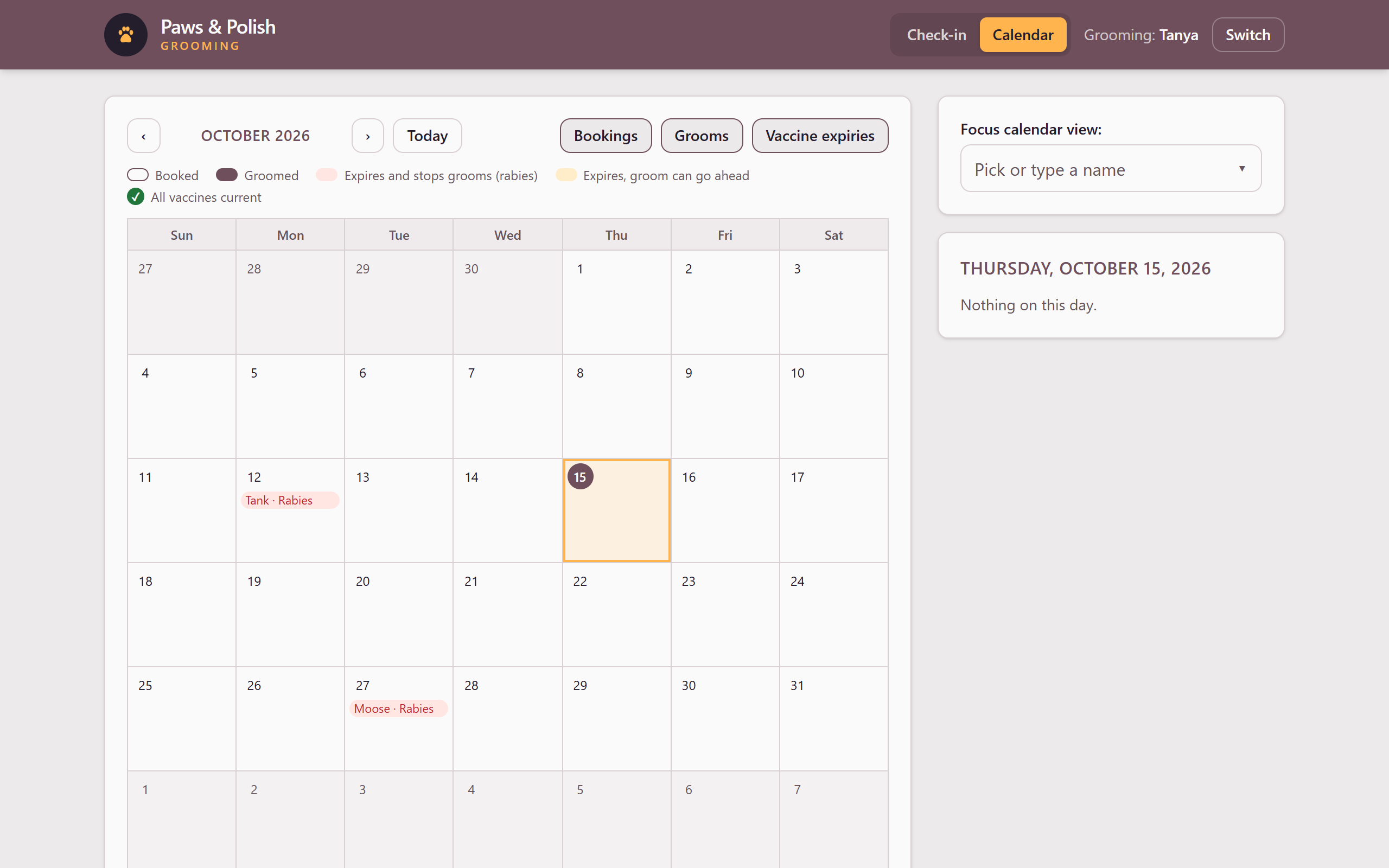
The Calendar screen To move between months, click ‹ (previous month) or › (next month). To come back to this month, click Today.
To choose what the calendar shows, click Bookings, Grooms or Vaccine expiries above the calendar. A highlighted button is shown; click it again to hide it.
Click a day. The right side of the screen lists everything on that day and the groomers’ schedules for it.
Click a dog’s name in the day’s list to open its card on the Check-in screen.
4.1 See one dog only
- Click Focus calendar view: and type the dog’s or owner’s name, then click the dog. The calendar shows only that dog, with the date it was last groomed.
- To see every dog again, click Show every dog.
You can also open the calendar for one dog from its card: click ▸ More details: vaccinations, last visit, contact, then See on the calendar.
5 Reading the calendar
| What you see | What it means |
|---|---|
| Outlined in the shop’s colour | Booked: a groom booked for that day |
| Filled in the shop’s colour | Groomed: a groom that was done |
| Red | Expires and stops grooms (rabies) |
| Amber | Expires, groom can go ahead |
| Green check mark | All vaccines current |
6 Result
The Calendar screen shows the month or the dog you chose, and the day you clicked.