Reset a manager’s Admin access
SOP MGR-10 · Manager manual
1 Purpose
Let another manager back into Admin when they have lost or replaced the phone that holds their passkey, or forgotten their PIN.
2 Applies to
Managers only, for another manager. You cannot reset your own Admin access: change your own passkeys and PIN with MGR-08 Manage your passkeys and PIN.
3 Before you begin
- Admin is open for you. See MGR-02 Open Admin.
- The manager whose access you are resetting is in the shop, ready to set up a new passkey or PIN straight after the reset.
4 What a reset does
A reset only takes away. It removes every passkey and the PIN that the other manager uses to open Admin, and locks Admin if they have it open. It does not give you, or anyone else, a way into Admin as them.
The next time they open Admin, they set up a new passkey or PIN themselves, exactly as on their first day. Until they do, anyone who clicks their name could set it up instead. That is why they must be in the shop, ready, when you reset.
5 Procedure
On the Admin overview, under The shop, click the Staff working here card. The Staff list opens.
Click Reset Admin access beside the manager’s name. A question opens under their name: Reset followed by their name and Admin access?
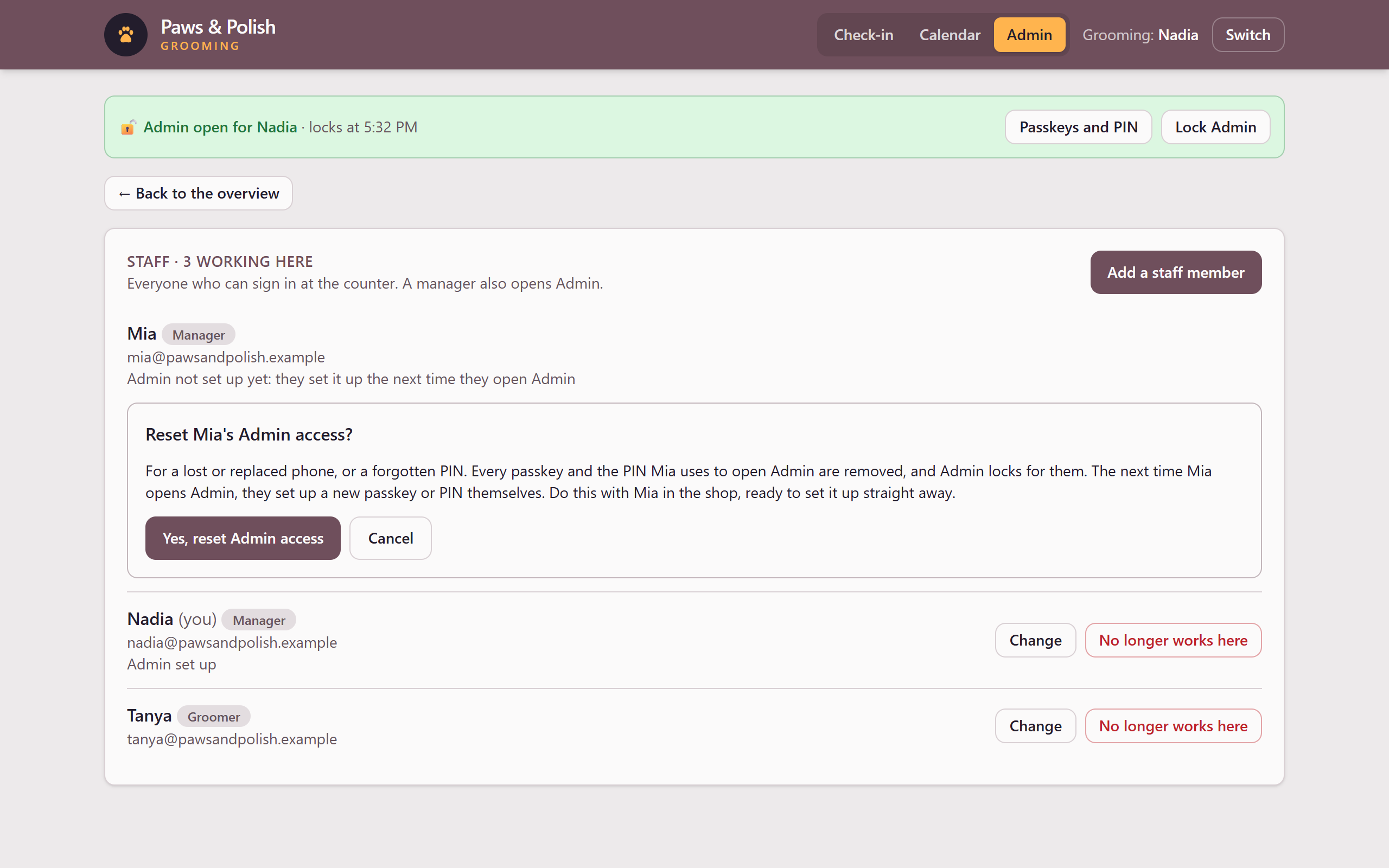
Resetting a manager’s Admin access Read the question.
Click Yes, reset Admin access. Under their name, the list shows Admin not set up yet.
Click Lock Admin in the green bar at the top of Admin. The screen shows 🔒 Admin is locked.
Click Switch at the top right of the screen. The Welcome screen opens.
5.1 The other manager sets up Admin again
The manager whose access you reset carries out these steps themselves, on the same tablet or computer.
Click your name on the Welcome screen.
Click Admin at the top of the screen. The screen shows Set up how you open Admin, followed by your name.
Click Set up a passkey and follow the prompt on your new phone or device. Or click Set a PIN, type a PIN of 4 to 8 digits, click Again, type the same PIN, and click Set PIN.
Admin opens for you.
6 Result
The Staff list shows Admin set up under the other manager’s name. Their old phone no longer opens Admin. The reset is recorded in the shop’s audit log, with your name.
7 If something goes wrong
7.1 You can’t reset your own Admin access
You clicked Reset Admin access for yourself. Change your own passkeys and PIN with Passkeys and PIN in the green bar. See MGR-08 Manage your passkeys and PIN.
7.2 Only a manager has Admin access to reset
The staff member is a groomer. A groomer does not open Admin, so there is nothing to reset.
7.3 Only that manager, with Admin open, can change how they open Admin
Someone tried to set up the other manager’s passkey or PIN while your Admin was still open. Only that manager sets up their own, from a locked Admin. Click Lock Admin, click Switch, and let them carry out steps 7 to 9.
7.4 Admin is already set up and nobody expected it
If the other manager finds that Admin asks them to Prove it’s you instead of Set up how you open Admin, someone else set it up first. Reset their Admin access again straight away, and tell the person responsible for the shop’s database, who can read the audit log.