Check the database and backups
SOP MGR-11 · Manager manual
1 Purpose
Check that the shop’s database is up to date and that the shop has a recent backup, and take a backup when one is needed.
2 Applies to
Managers. Check it once a week, before any big change to the shop’s records, and whenever the Database and backups card is not green.
3 Before you begin
- Admin is open. See MGR-02 Open Admin.
4 Procedure
On the Admin overview, find the Database and backups card under The shop. It says, in words, the one thing to know first:
The card says What it means Up to date · last backup and how long ago, in green All is well Up to date · no backups yet, in amber Take a backup now (step 4) New sections wait for a restart, in amber A change was merged and the app has not restarted since. Tell the person responsible for the database The last update failed, in red Tell the person responsible for the database. See SYS-09 Click the card. The Database and backups screen opens.
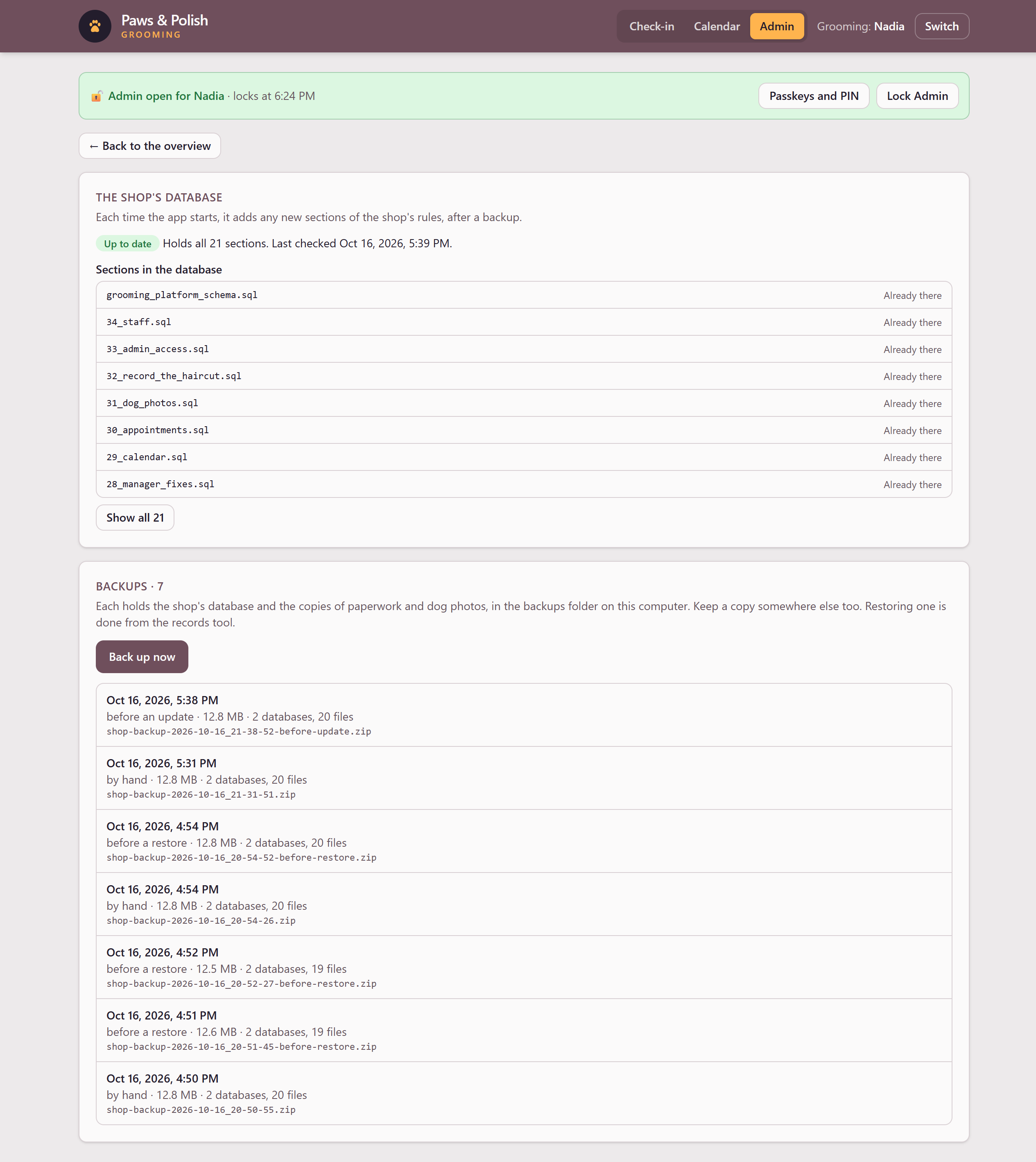
The Database and backups screen Read The shop’s database box. Up to date in green means the database holds every section of the shop’s rules. Sections in the database lists each one, and how it got there: When it was built, Already there, or Added by an update, with the date.
4.1 Take a backup
- In the Backups box, click Back up now. The button says Backing up… this takes a minute. When it finishes, the screen shows Backup saved and the new backup appears at the top of the list, marked from Admin, by your name.
4.2 Read the list of backups
Each backup shows when it was taken, why, its size, and what it holds:
Why Taken from Admin, by a name With Back up now, by that manager before an update By the app, before it added new sections before a restore By the Technical workbench, before it put an older backup back by hand From the Technical workbench or a terminal A backup marked Can’t be read is damaged. Do not rely on it. Take a new backup.
To return to the cards, click ← Back to the overview.
5 Result
The Database and backups card is green, and the newest backup is recent.
Putting a backup back replaces the shop’s records, so it is done from the Technical workbench, by the person responsible for the database. See SYS-08 Back up and restore the shop’s data.
Every backup is kept on the shop’s computer. If that computer is lost or fails, its backups go with it. Copy a recent backup to a USB drive or other safe place regularly; see SYS-08.
6 If something goes wrong
6.1 The backup did not work
Read the rest of the message. The most common reason is a full disk. Tell the person responsible for the database.