Add or change a dog’s photo
SOP GRM-09 · Groomer manual
1 Purpose
Put a photo of the dog on its profile, so staff can tell dogs apart at a glance in the list, on the card and on bookings.
2 Applies to
Every groomer.
3 Before you begin
- You are signed in to your profile.
- The dog’s card is open. See GRM-02 Check in a dog, steps 2 to 4.
4 Procedure
Click Add photo under the picture at the top left of the dog’s card. If the dog already has a photo, the button says Change photo.
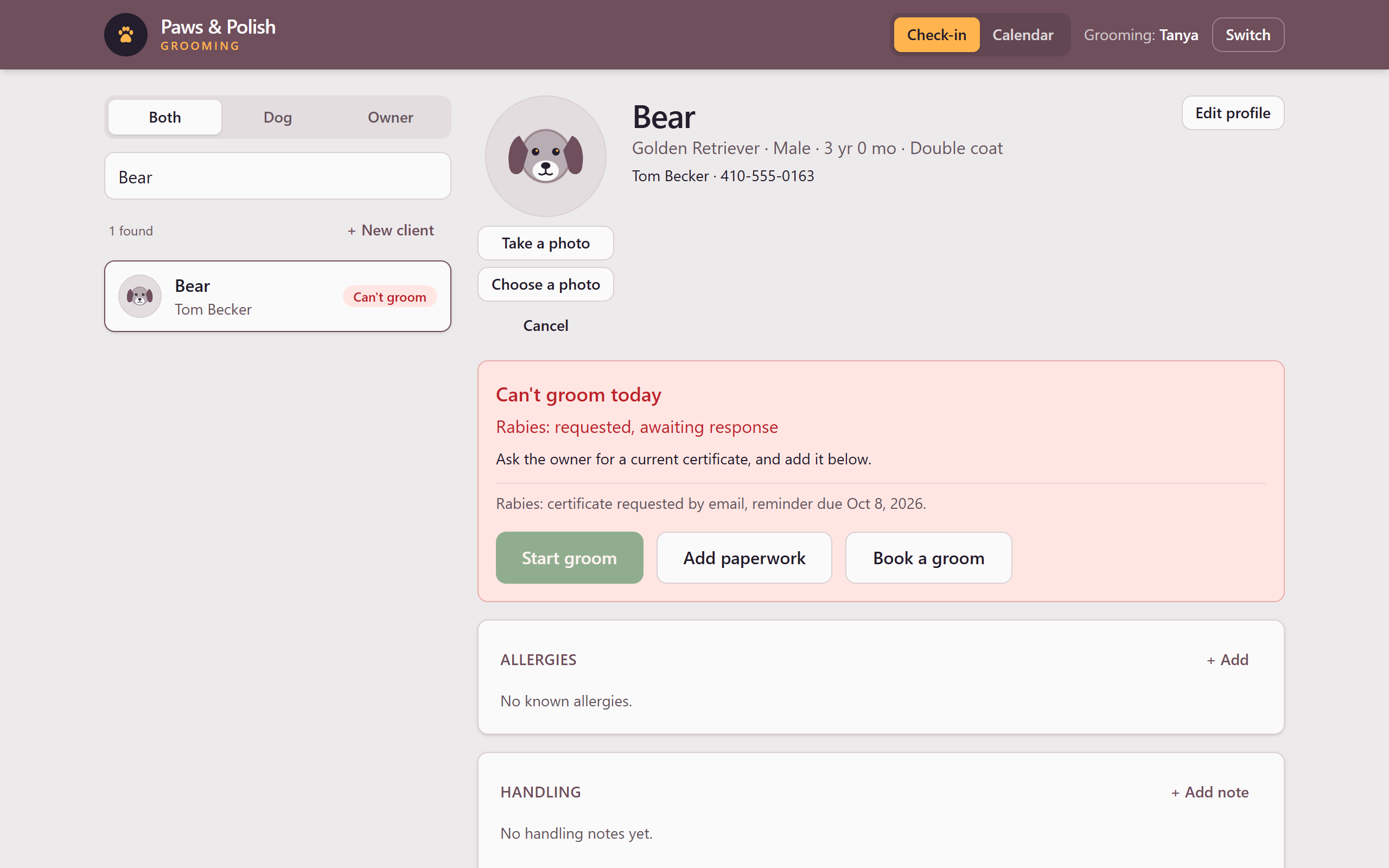
The photo buttons Click one:
- Take a photo: on a tablet, the tablet’s camera opens. On a computer, the webcam opens: click Take the picture, then Use this photo.
- Choose a photo: choose a picture file saved on the tablet or computer.
The photo is saved and appears on the dog’s card.
4.1 Remove a photo
- Click Change photo.
- Click Remove photo.
- When asked Take the dog’s photo off their profile?, click OK.
To close the photo buttons without changing anything, click Cancel.
5 Result
The dog’s photo appears on its card, in the dog list, and on the booking form. Click the photo on the card to see it full size.
NoteNot in the online demo
The online demo of the app does not keep photos, so these buttons only appear in the shop’s own app.