Read the Admin overview
SOP MGR-03 · Manager manual
1 Purpose
See, at a glance, the state of every dog’s vaccinations and the manager’s to-do list, and open any list behind a count.
2 Applies to
Managers, at the start of each shift and whenever the to-do list needs attention.
3 Before you begin
- Admin is open. See MGR-02 Open Admin.
4 Procedure
Read the cards. Each card shows a number and what it counts.
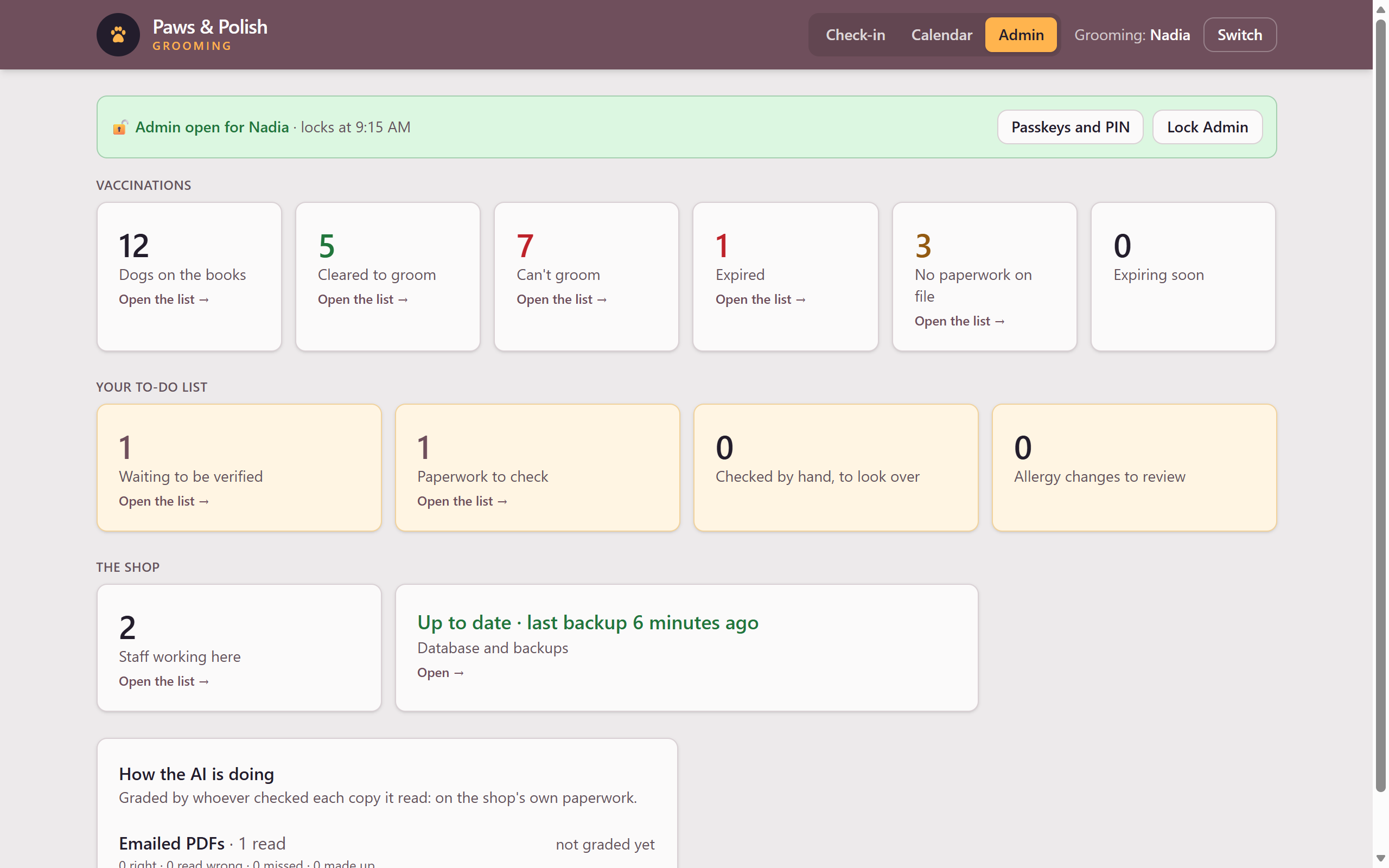
The Admin overview Vaccinations
Card What it counts Dogs on the books Every active dog Cleared to groom Dogs that may be groomed today Can’t groom Dogs whose rabies stops the groom until paperwork is confirmed Expired Dogs with a vaccine past its date that does not stop a groom. Ask for updated paperwork at the next visit No paperwork on file Dogs with a vaccine never received, or asked for and not in yet Expiring soon Dogs with a vaccine about to expire. Ask for updated paperwork at the next visit Your to-do list (the pale amber cards)
Card What to do Procedure Waiting to be verified Shots typed in with no copy, to check with the paper or the vet MGR-04 Paperwork to check Copies saved for later, not yet read MGR-05 Checked by hand, to look over Shots a groomer checked against a photo, for your second look MGR-06 Allergy changes to review Allergies taken off or made less severe MGR-07 The shop
Card What it counts Procedure Staff working here Everyone who can sign in at the counter. The list behind it is where staff are added and changed, and where another manager’s Admin access is reset MGR-09, MGR-10 Database and backups In words, not a number: whether the shop’s database is up to date, and how old the newest backup is. Green when all is well MGR-11 Under the cards
Box What it is for How the AI is doing How often the AI read dates right, wrong, missed them or made them up, graded by whoever checked each copy it read. Shown separately for Emailed PDFs and Photos To open the list behind a card, click the card. Cards with a list show Open the list →. A card showing 0 has no list.
In a list, click a dog’s name to open its card on the Check-in screen.
To return to the cards, click ← Back to the overview, or click Admin at the top of the screen again.
5 Result
The overview shows every count. When the to-do list is clear, each to-do card shows 0.
6 If something goes wrong
6.1 Disputed
Two records for the same vaccine disagree. Tell the person responsible for the database; they compare the two records.