Check in a dog
SOP GRM-02 · Groomer manual
1 Purpose
Find a dog when it arrives and confirm that it is cleared for today’s groom.
2 Applies to
Every groomer, each time a dog arrives at the shop.
3 Before you begin
- You are signed in to your profile. See GRM-01 Sign in to your profile.
4 Procedure
After you select your profile, the Check-in screen opens. The left side of the screen lists every dog on file. Each dog shows its owner’s name and a label: Cleared in green or Can’t groom in red.
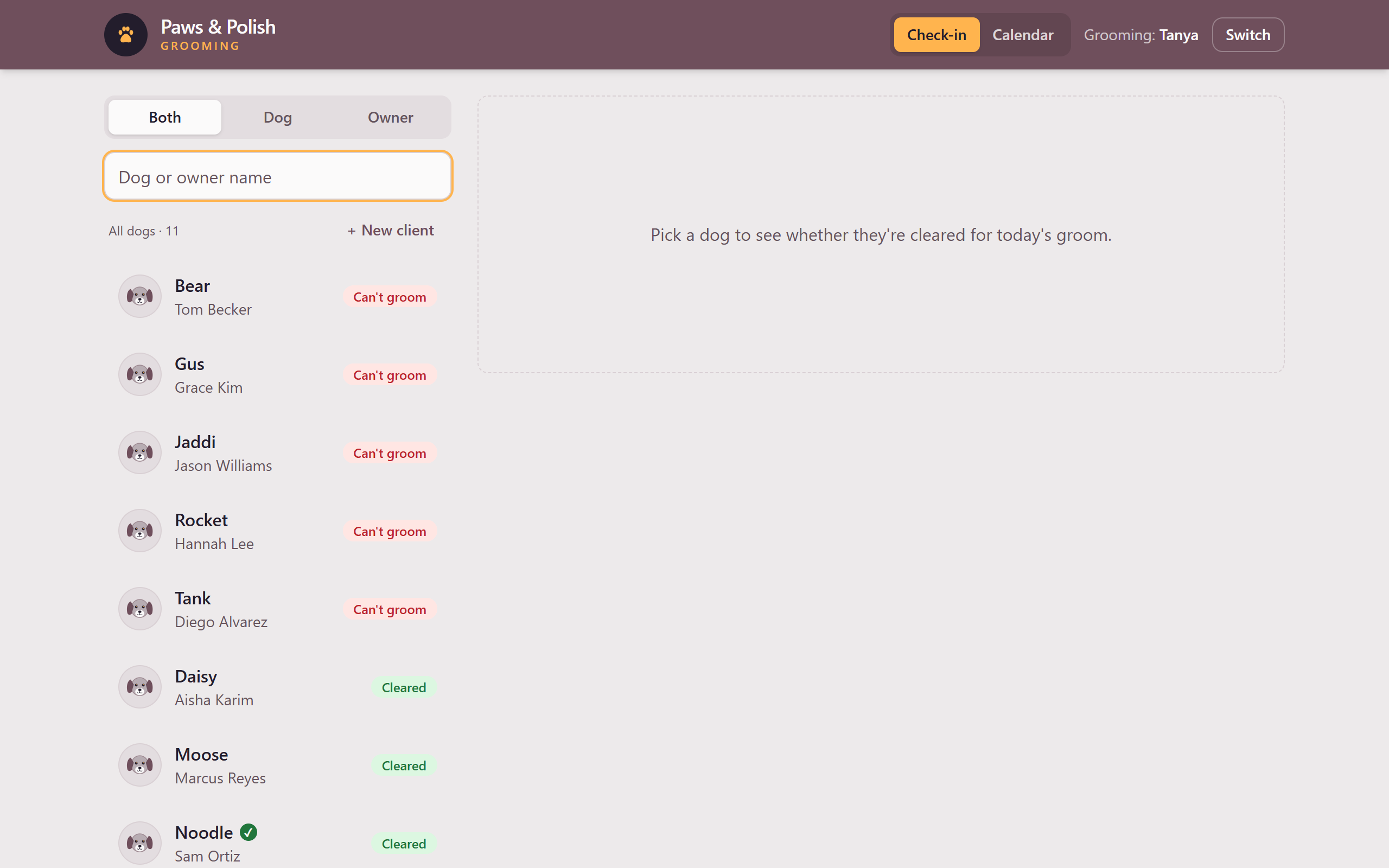
The Check-in screen Click the Dog or owner name search box on the left side of the screen.
Type the name of the dog or the owner you are looking for. The list below the search box shows only the dogs that match.
To search by the dog’s name only, click Dog above the search box. To search by the owner’s name only, click Owner. Click Both to search by either name again.
Click the dog in the list. The dog’s card opens on the right side of the screen.
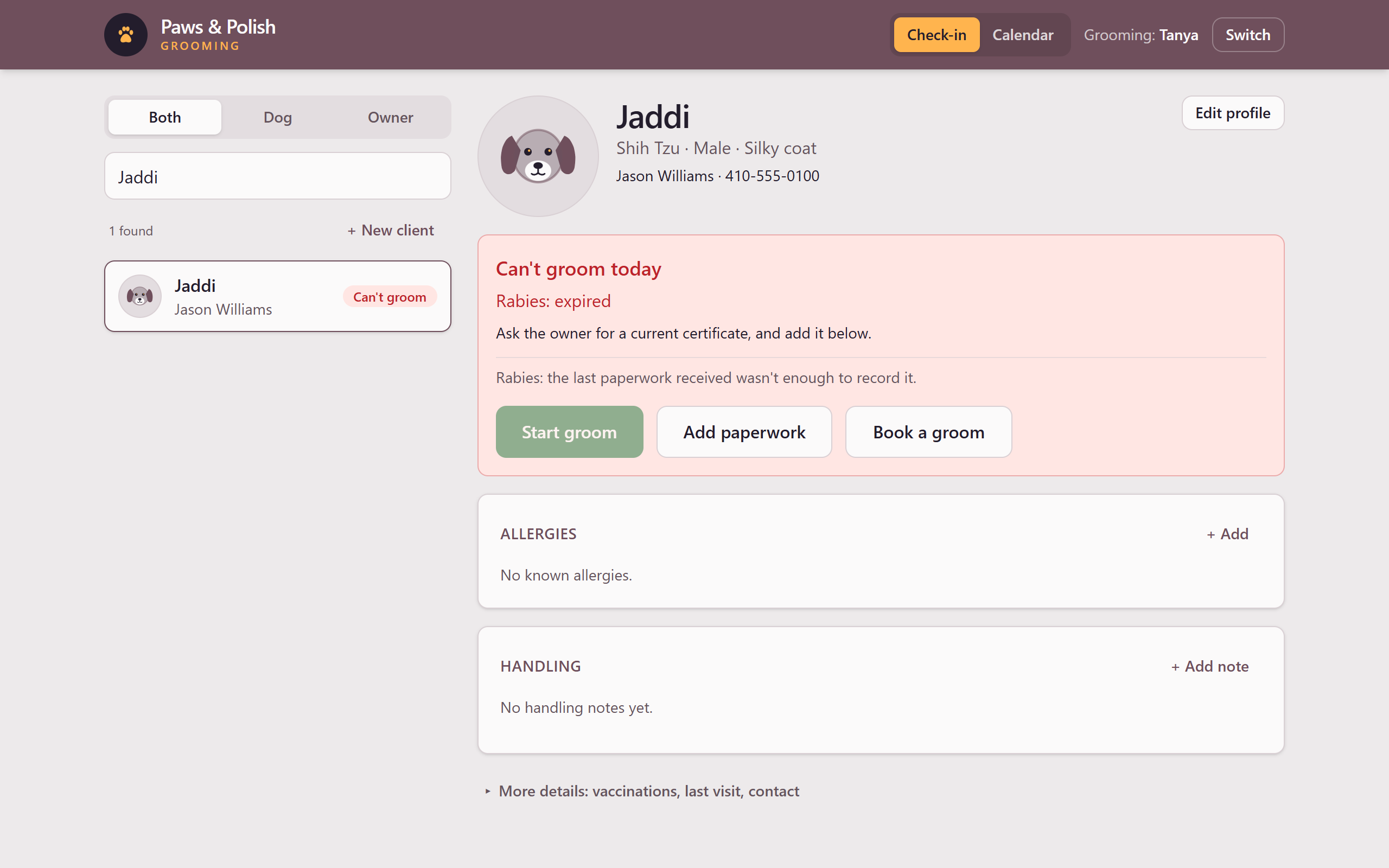
A dog’s card Read the box at the top of the dog’s card:
- Cleared for today’s groom, in green: the dog may be groomed.
- Can’t groom today, in red: the dog may not be groomed today. The line below names the vaccine that stops the groom, for example Rabies: expired.
If the dog is cleared, click Start groom. The box at the top of the card changes to Being groomed, with the time and your name.
5 Result
The dog’s card shows Being groomed — checked in at the current time by your name, and a Record the haircut button.
6 If something goes wrong
6.1 Can’t groom today
The dog’s rabies vaccine has expired, or the shop has no proof of it. The Start groom button cannot be clicked. Ask the owner for a current rabies certificate, then click Add paperwork on the dog’s card.
6.2 No dog or owner by that name.
The dog is not on file. Check the spelling, or click Both to search by either name. If the dog is new to the shop, click Add as a new client.