Manage your passkeys and PIN
SOP MGR-08 · Manager manual
1 Purpose
Add or remove the passkeys that open Admin for you, and set or change your Admin PIN.
2 Applies to
Every manager, for their own profile only. Nobody can change another manager’s passkeys or PIN. If you lose the phone that holds your passkey, or forget your PIN, another manager resets your Admin access, and you set it up again. See MGR-10 Reset a manager’s Admin access.
3 Before you begin
- Admin is open. See MGR-02 Open Admin.
4 Procedure
Click Passkeys and PIN in the green bar at the top of Admin. Two boxes open: Your passkeys and Change your PIN (or Set a PIN).
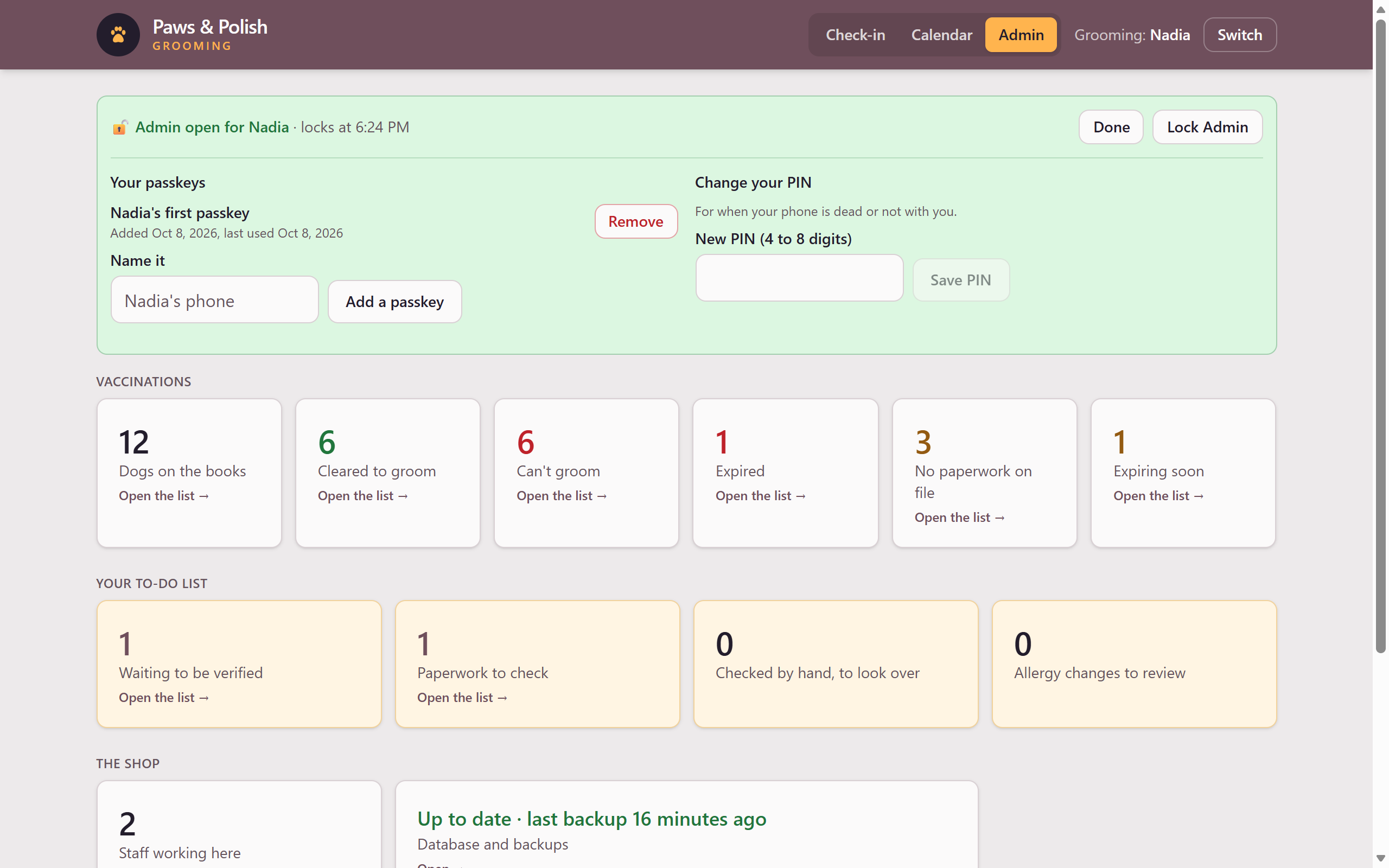
Passkeys and PIN
4.1 Add a passkey
- Click Name it and type a name for the device, for example “Nadia’s phone”.
- Click Add a passkey and follow the prompt on your device.
4.2 Remove a passkey
- Under Your passkeys, click Remove beside the passkey. You cannot remove your last way in.
4.3 Set or change your PIN
A PIN is for when your phone is dead or not with you.
- Click New PIN (4 to 8 digits) and type the new PIN.
- Click Save PIN.
4.4 Finish
- Click Done in the green bar.
5 Result
The green bar shows Passkey added. or PIN saved. The next time you open Admin, the new passkey or PIN works.