Sign in to your profile
SOP MGR-01 · Manager manual
1 Purpose
Sign in to your profile so that the system records your name on every check-in, haircut, note and booking you make.
2 Applies to
Every manager, at the start of each shift and whenever they take over the shop tablet or computer.
3 Before you begin
- The shop’s app is open on the shop tablet or computer.
4 Procedure
Find the Welcome screen. It shows the shop’s logo, the heading Who’s grooming?, and one button for each staff member.
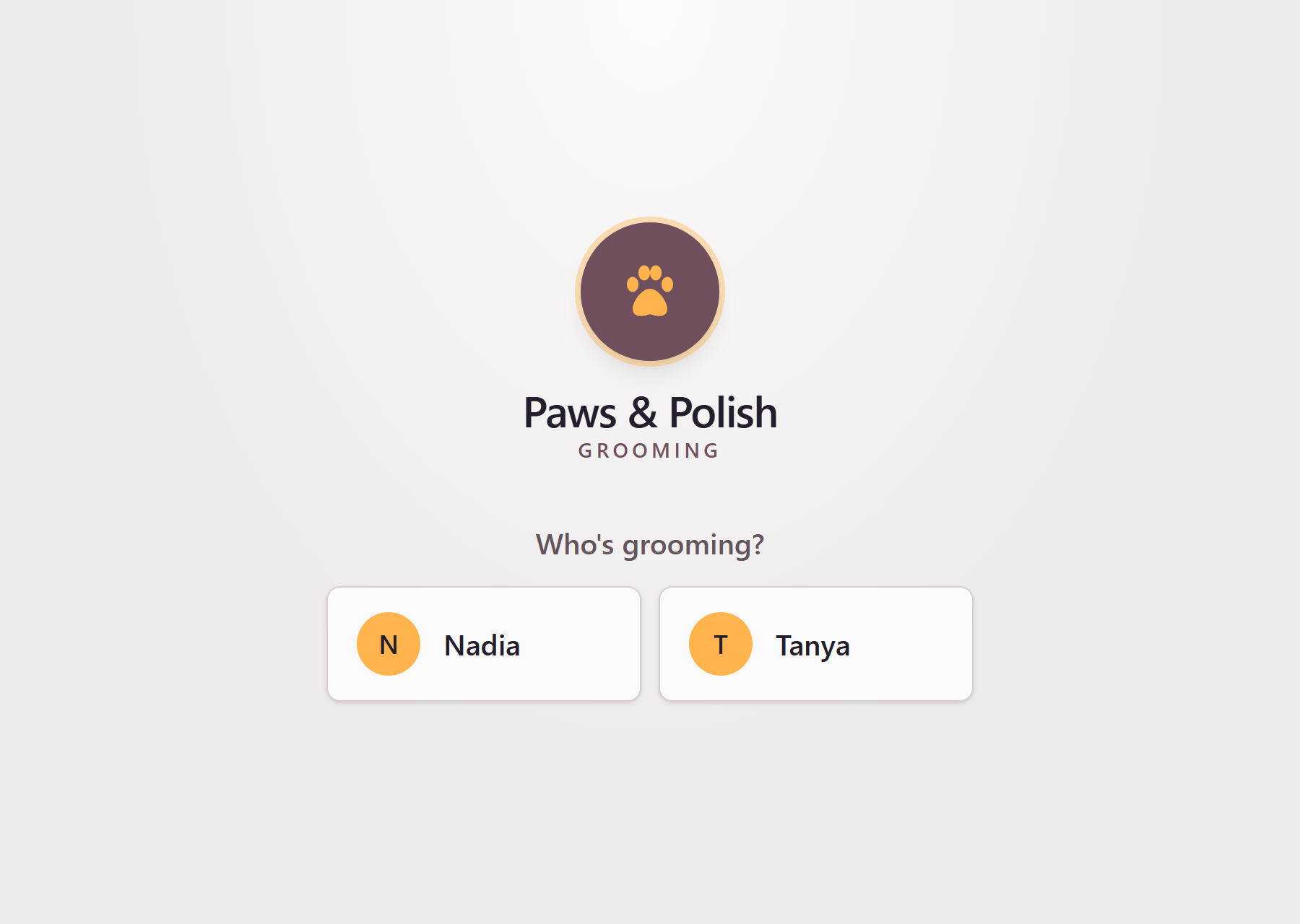
The Welcome screen Click the button with your name on it. The Check-in screen opens.
5 Result
The Check-in screen is open. At the top right of the screen, your name appears after Grooming:.
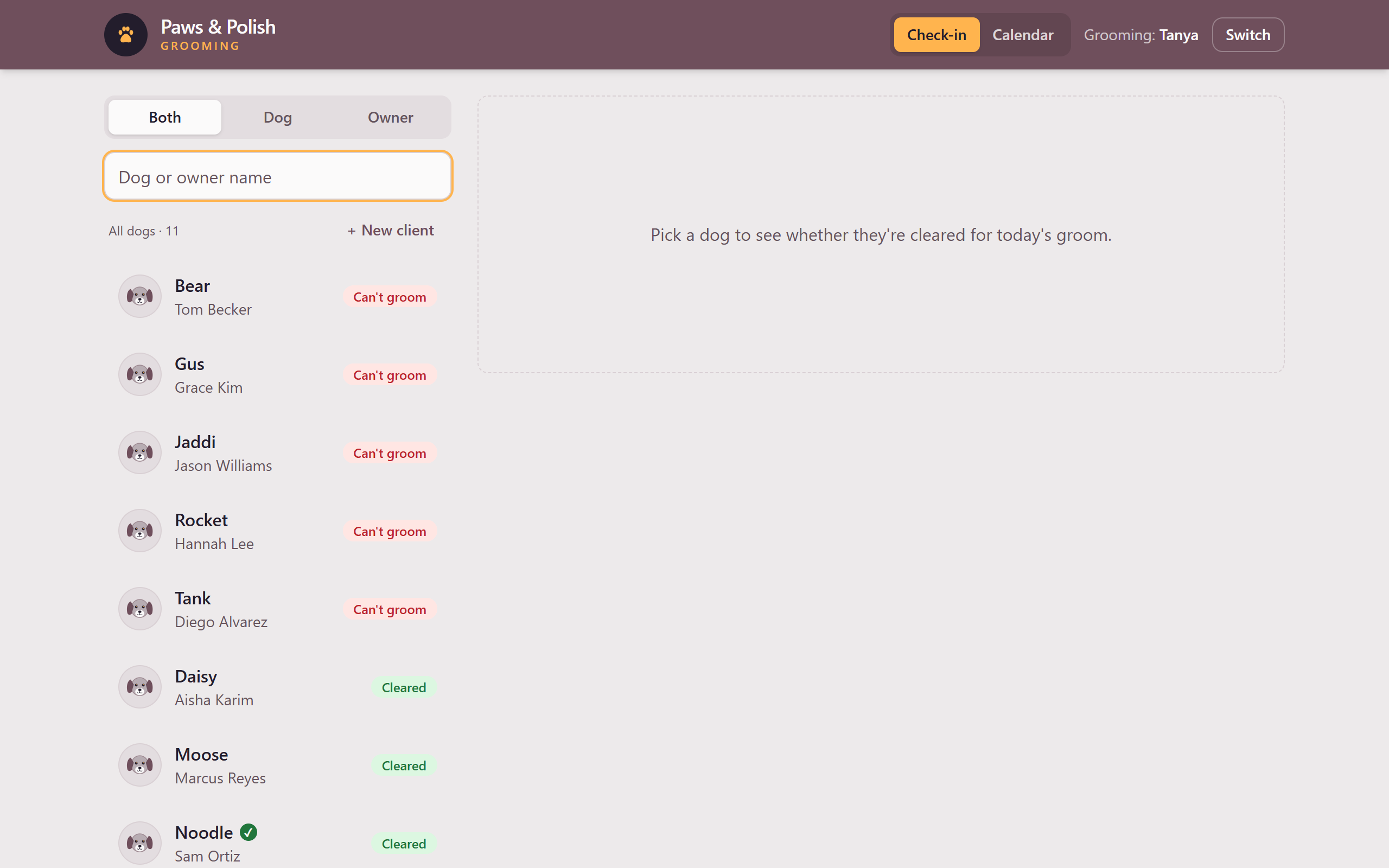
The Welcome screen does not ask for a password. Click only your own name. The name after Grooming: is recorded on everything done on the screen until someone switches profiles.
6 Switching to another profile
When another staff member takes over the tablet or computer:
- Click Switch at the top right of the screen. The Welcome screen opens.
- The next staff member clicks the button with their own name on it. The Check-in screen opens under their name.
7 What is different for managers
A manager’s profile shows one more button at the top of the screen: Admin, next to Check-in and Calendar. Signing in to your profile does not open Admin. Admin asks for your passkey or PIN each time. See MGR-02 Open Admin.