Add or change a staff member
SOP MGR-09 · Manager manual
1 Purpose
Keep the staff list right: add someone who starts work, put a name or email right, change a role, and mark someone who leaves as no longer working here.
2 Applies to
Managers only. Nobody is ever deleted from the staff list: someone who leaves is marked as no longer working here, and their name stays on every past groom and record.
3 Before you begin
- Admin is open. See MGR-02 Open Admin.
- For a new staff member: you have their name as it should show on the Welcome screen, and their email.
4 Procedure
On the Admin overview, under The shop, click the Staff working here card. The Staff list opens. Everyone who works here is listed, each with their email and role, Groomer or Manager.
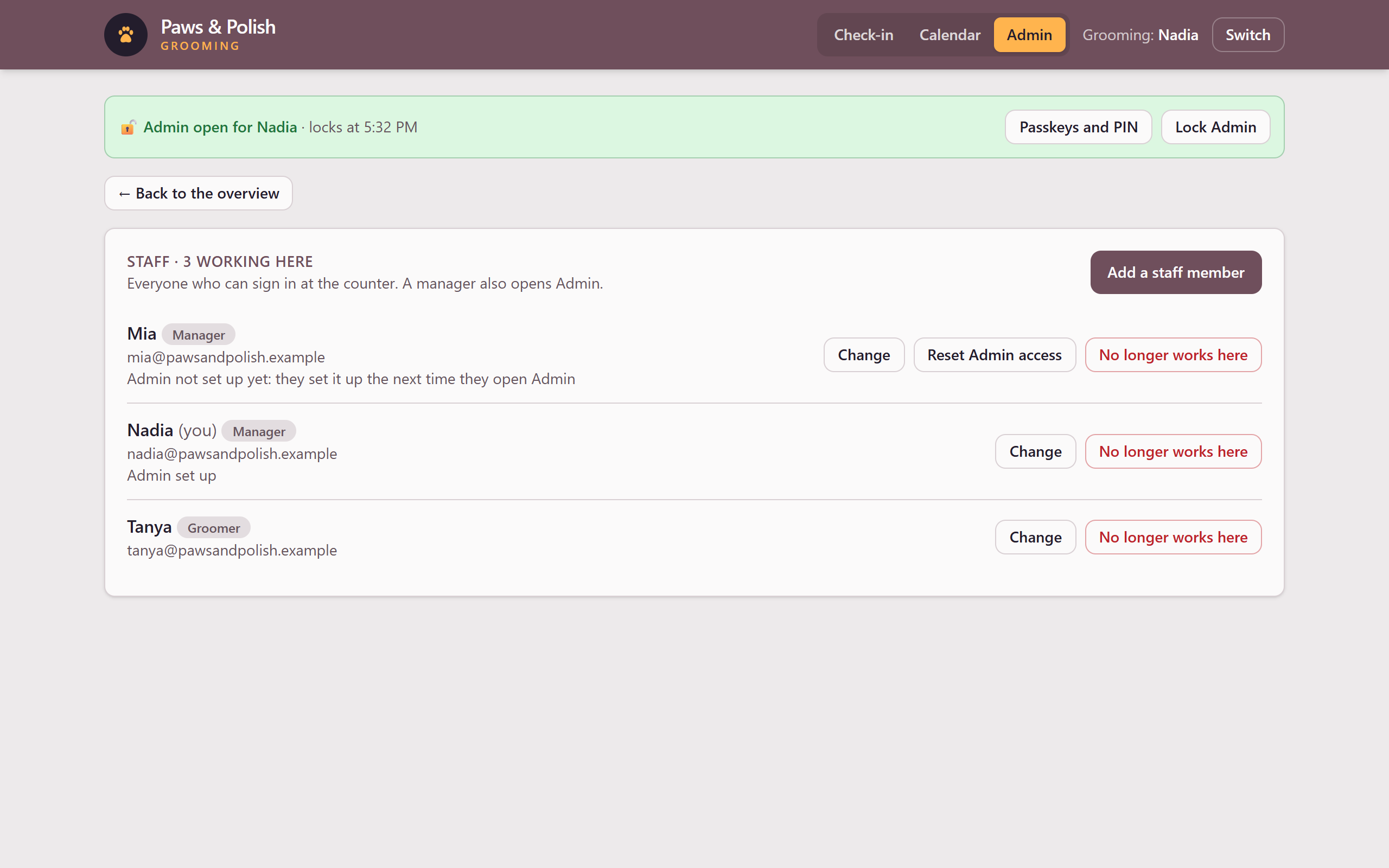
The staff list
4.1 Add a staff member
Click Add a staff member at the top right of the Staff list. The New staff member form opens above the list.
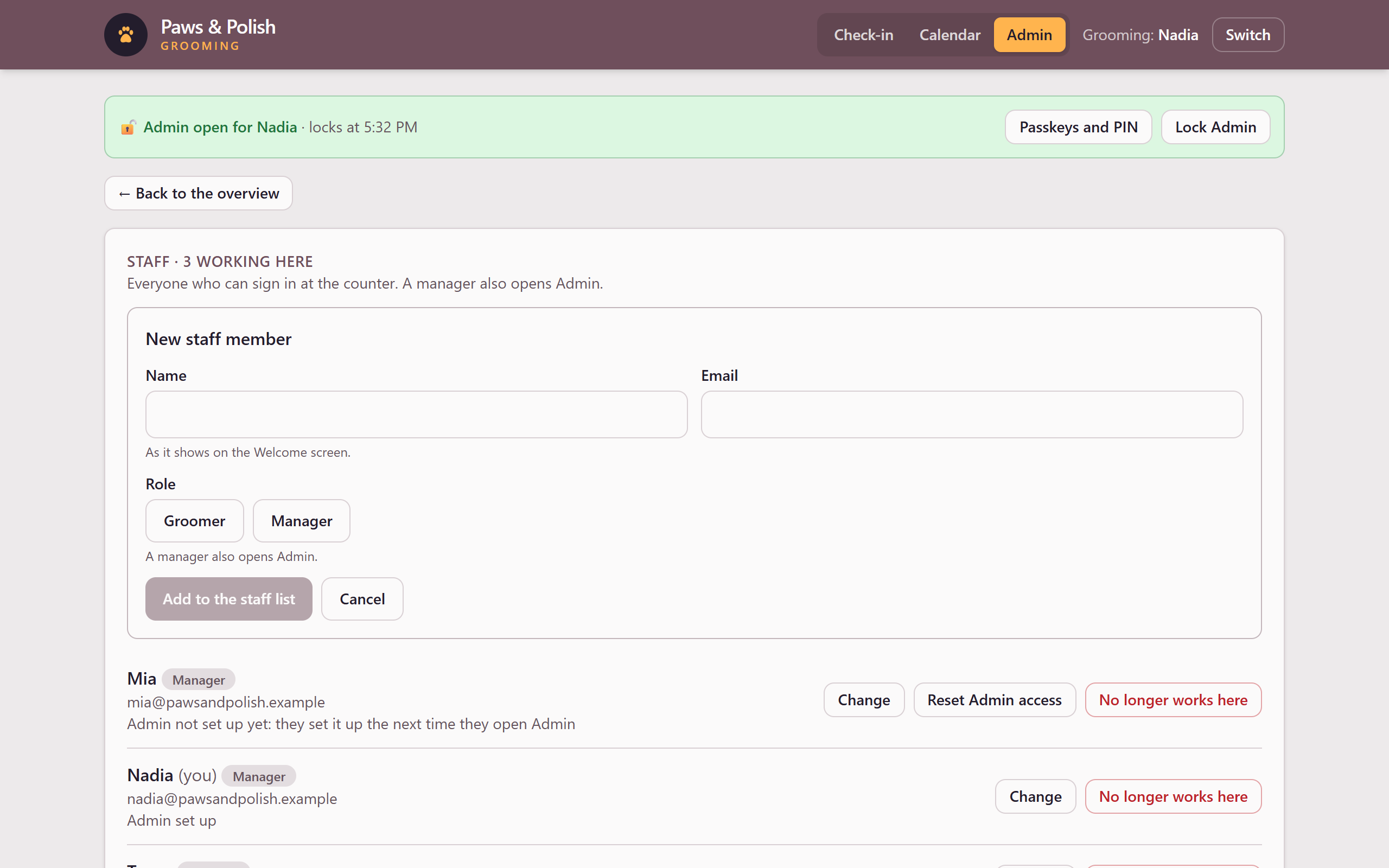
Adding a staff member Click Name and type their name as it should show on the Welcome screen.
Click Email and type their email.
Under Role, click Groomer or Manager. A manager can also open Admin.
Click Add to the staff list. The form closes, and the list shows the new staff member.
A new manager sets up their own passkey or PIN the first time they open Admin. See Set up how you open Admin in MGR-02 Open Admin. Until then, the list shows Admin not set up yet under their name.
4.2 Change a name, email or role
- Click Change beside the staff member. A form opens under their name, with their name, email and role filled in.
- Click the box to change and type the new name or email, or under Role, click Groomer or Manager.
- Click Save changes. The form closes, and the list shows the change.
A manager who is made a groomer loses their passkeys and PIN. If they are made a manager again later, they set up Admin again, as on their first day.
4.3 Mark someone as no longer working here
- Click No longer works here beside the staff member. A question opens under their name.
- Read the question.
- Click Yes, they no longer work here. The staff member moves to the No longer working here list below. Their name comes off the Welcome screen and the list of groomers a booking can go to.
To cancel instead, click Cancel.
4.4 Mark someone as working here again
- In the No longer working here list, below the Staff list, click Working here again beside the staff member. They move back to the Staff list, and their name shows on the Welcome screen again.
4.5 Finish
- Click ← Back to the overview to return to the Admin overview.
5 Result
The Staff list shows a line in green under the list, such as Sam is on the staff list. Every change is recorded in the shop’s audit log, with your name, and what it was before and after.
6 If something goes wrong
6.1 Someone on the staff list already has that email
Another staff member, working here or not, already has this email. Check the email. If the person worked here before, find them in the No longer working here list and click Working here again instead of adding them again.
6.2 Type their email, like name@example.com
The email is missing or is not a complete email. Type the whole email, with the **@** and the part after it.
6.3 The shop must keep at least one manager
You tried to make the shop’s only manager a groomer, or to mark them as no longer working here. Without a manager, nobody can open Admin. Make someone else a manager first, then make the change.
6.4 Sam still has 2 grooms booked ahead
The message names the staff member and how many grooms are booked with them. Their dogs would be booked with someone who is not coming in. Move each of those grooms to another groomer, or cancel it, first. See GRM-11 Change or cancel a booking. Then mark them as no longer working here again.
6.5 🔒 Admin is locked
Admin locked because its 30 minutes ran out, or because you changed your own role to groomer or marked yourself as no longer working here. Open Admin again (see MGR-02 Open Admin) if you are still a manager.