Add vaccine paperwork
SOP GRM-06 · Groomer manual
1 Purpose
Keep a copy of the vaccination records an owner brings or emails, and record the dates of each shot, so the dog’s card shows whether it can be groomed.
2 Applies to
Every groomer, whenever an owner brings or sends vaccination records.
3 Before you begin
- You are signed in to your profile.
- The dog’s card is open. See GRM-02 Check in a dog, steps 2 to 4.
- You have the paperwork in hand, on the owner’s phone, or as an emailed file.
4 Procedure
4.1 Save a copy
Click Add paperwork on the dog’s card, under the box at the top. The Paperwork the owner brought box opens.
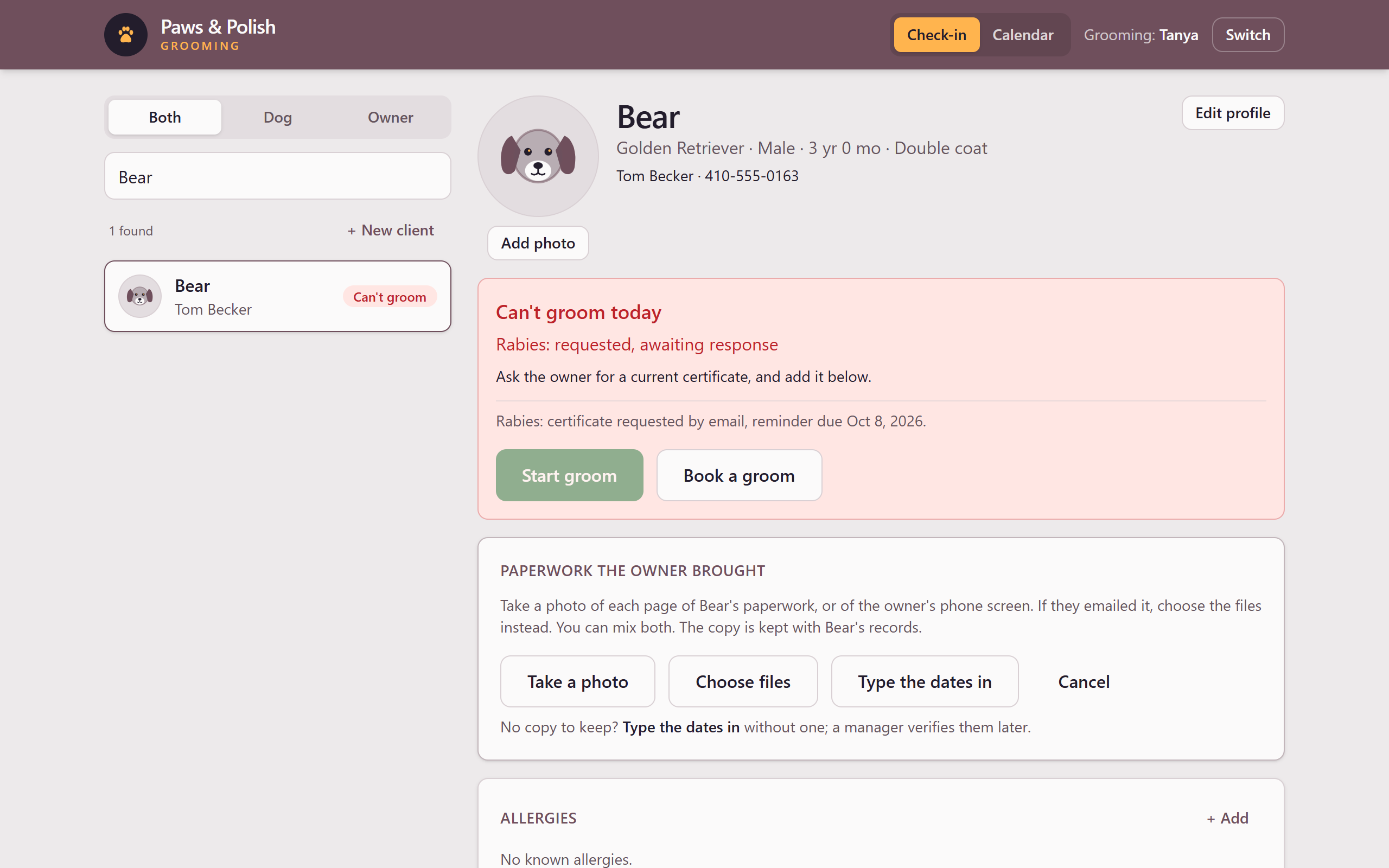
Adding paperwork Choose how the paperwork arrives:
- On paper or on the owner’s phone: click Take a photo. Hold the paper (or the phone screen) flat and close, so the dates fill the picture. On a tablet, the tablet’s camera opens: take the picture as usual. On a computer, the webcam opens: click Take the picture, then click Use this photo if you can read every date, or Retake if you cannot.
- As an emailed file: click Choose files and choose the file or files.
- No copy to keep: click Type the dates in and go to Type the dates in without a copy.
For paperwork with more than one page, click Take another photo or Add a file for each further page. To remove a page that came out badly, click the ✕ on it.
Click Save it (or Save all followed by the number of pages). The copy is saved and the screen shows Copy saved and Who checks it?
4.2 Choose who checks it
- Click one:
- I’ll check it now: you read the pages and type in the dates now. They count as verified straight away, under your name. Go to Check it now.
- Check it later: if you are too busy or the paperwork needs a careful look. The screen shows Saved for later. and a manager will review it. Click Close. You are finished.
4.3 Check it now
The pages of the copy appear at the top, large, with the date form under them. Click a page to open it full size.
If the Have the AI read it button is shown, you may click it. The AI reads the pages and fills in the dates it finds, usually in under a minute. Each date it fills in says AI filled this in · check it against the page. The AI can be wrong: check every date it fills in against the page.
For each vaccine the paperwork shows, click Given and enter the date the shot was given, exactly as the paper prints it.
Click Expires and enter the expiry date, exactly as the paper prints it.
A shot with no expiry date on the paper cannot be recorded. The system never guesses one. Leave that vaccine’s dates empty.
For each vaccine that is not on the paperwork, click Not on their paperwork beside its name. The line changes to Asked the owner · reminder in a week, and the shop asks the owner for it.
Click Save shot (or Save followed by the number of shots). Each saved vaccine shows Saved · checked by hand in green.
Click Done checking. The box closes and the dog’s card is updated.
4.4 Type the dates in without a copy
Use this only when there is no copy to keep, for example when the owner reads the dates out from a paper they take home.
After clicking Type the dates in, a form lists each vaccine the shop tracks.
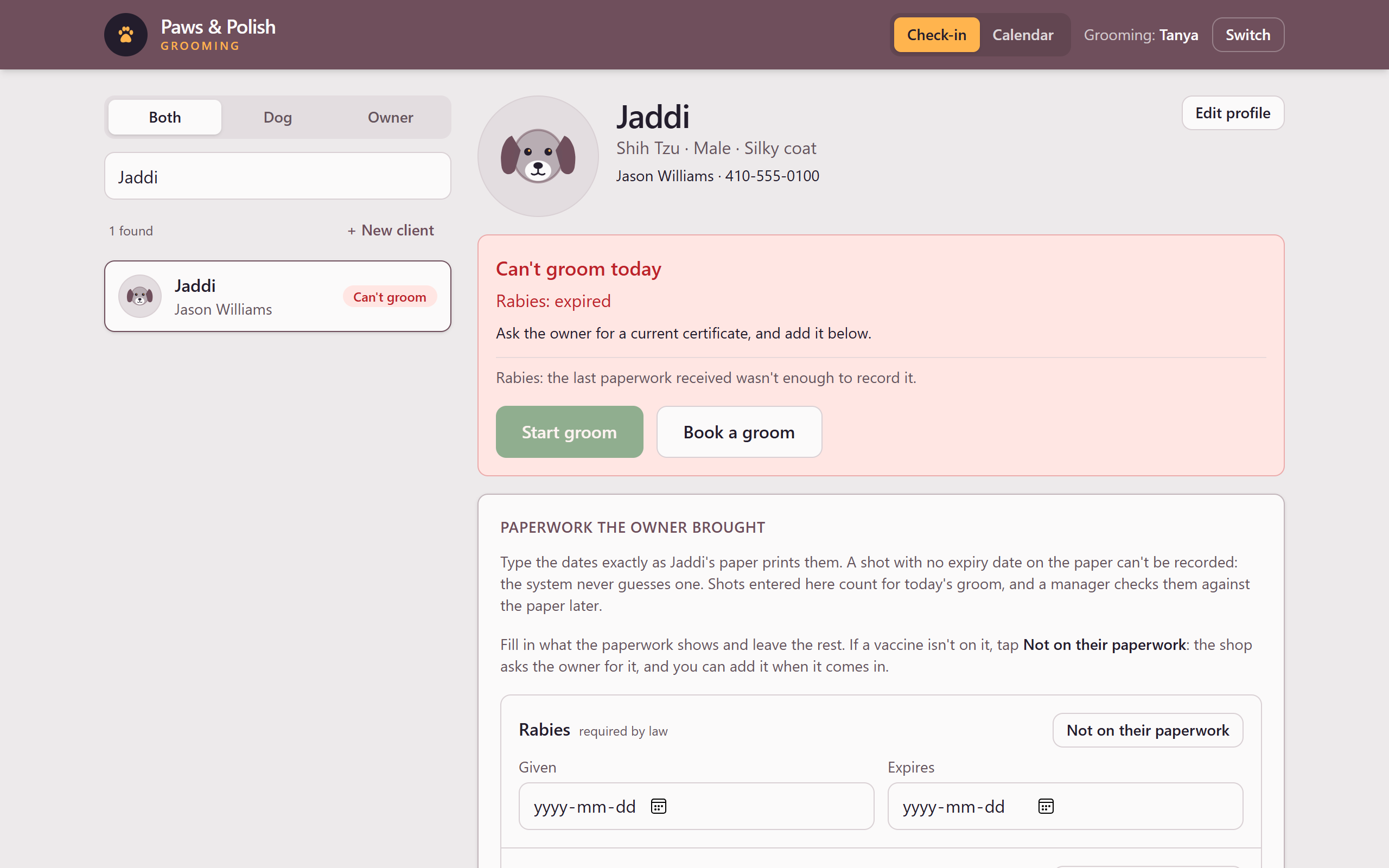
Typing the dates in For each vaccine, click Given and enter the date given, then click Expires and enter the expiry date, exactly as the paper prints them.
For each vaccine that is not on the paper, click Not on their paperwork.
Click Save shot. Each saved vaccine shows Saved · awaiting verification. A manager checks it against the paper later.
Click Done to close the form.
5 Result
The box at the top of the dog’s card is updated. A dog whose rabies was the only thing stopping the groom now shows Cleared for today’s groom. Shots typed in without a copy count for today’s groom, and a manager verifies them later.
6 If something goes wrong
6.1 The browser wasn’t allowed to use the camera.
The computer or tablet blocked the camera. Allow the camera in the browser’s address bar, or click Choose a file and use a file instead.
6.2 A date shows a message in red after Save shot
The date cannot be recorded as typed: for example, a shot given in the future, or an expiry before the date given. Read the message, correct the date, and click Save shot again.
6.3 The AI’s last answer couldn’t be used.
Click Try the AI again, or type the dates in yourself.