Add a new client
SOP GRM-03 · Groomer manual
1 Purpose
Put a new owner and their dog on file, so the dog can be checked in, booked and groomed.
2 Applies to
Every groomer, when an owner and dog come to the shop for the first time.
3 Before you begin
- You are signed in to your profile. See GRM-01 Sign in to your profile.
- Search for the dog first, to make sure it is not already on file. See GRM-02 Check in a dog.
- If the owner already has another dog on file, follow GRM-04 Add another dog for an owner instead.
4 Procedure
4.1 Enter the owner and the dog
Click + New client on the left side of the Check-in screen, above the list of dogs. The New client form opens on the right.
If you searched for a name that is not on file, you can click Add as a new client under No dog or owner by that name. instead. The form opens with the name you typed already filled in.
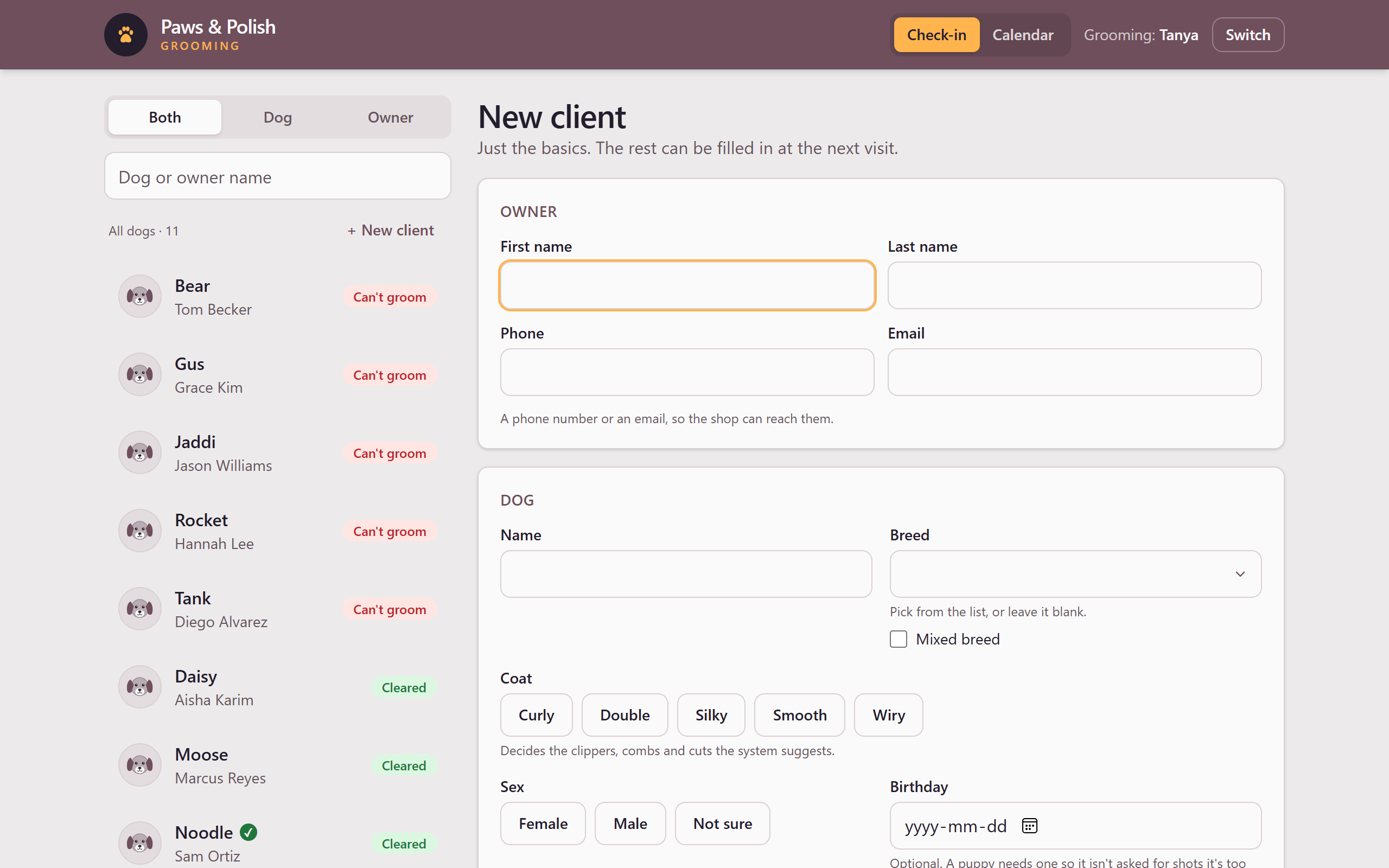
The New client form In the Owner box, click First name and type the owner’s first name.
Click Last name and type the owner’s last name.
Click Phone and type the owner’s phone number, or click Email and type the owner’s email address. Enter at least one, so the shop can reach the owner.
In the Dog box, click Name and type the dog’s name.
Click Breed and choose the dog’s breed from the list. You can type the first letters to shorten the list. If nobody knows the breed, leave it blank.
If the breed is a mix, tick Mixed breed. Under Mixed with, click Unknown, or click A breed I can name and choose the second breed in Other breed.
Under Coat, click the dog’s coat type. The coat is required. If you chose a breed, the system has already selected that breed’s usual coat; click a different one if this dog’s coat is different.
Under Sex, click Female, Male or Not sure.
If the owner knows the dog’s birthday, click Birthday and enter it. A puppy needs a birthday, so that it is not asked for vaccines it is too young for.
Click Save and add paperwork. The owner and dog are saved, and the Paperwork for form opens with the dog’s name.
4.2 Add the dog’s paperwork
If the owner brought no paperwork, click No paperwork today. The dog’s card opens. You are finished.
If the owner brought vaccination records, follow GRM-06 Add vaccine paperwork from step 2. At the end, the last button reads Finish · open the dog’s card, instead of Done checking or Done. Click it. The dog’s card opens.
5 Result
The new dog appears in the list on the Check-in screen, and its card is open on the right.
6 If something goes wrong
6.1 “…” isn’t on the breed list.
The breed typed is not one the shop knows. If one of the names after Did you mean is right, click it. If the breed is real but missing from the list, click No, it’s one the list doesn’t have. It is added to the list.
6.2 Choose the coat to save.
Save and add paperwork cannot be clicked until a coat is chosen. Click one of the buttons under Coat.